
How to add an Image/Gif to an Icegram Engage message
Adding images/gif in Icegram's messages is very easy. Here are the quick steps how you can do so with clear explanation and screenshots.
To add an image/gif to an Icegram Engage message , follow the steps mentioned below:
Step 1: Create a new campaign / Edit a previously created campaign.
Step 2: Edit a previously created message.
Step 3: Write Headline according to your requirements.
Step 4: In the Message Body section, click on Add Media button and it will open a box:
A. If you want to upload image from your desktop/mobile, click on Select Files button as shown in the image below:
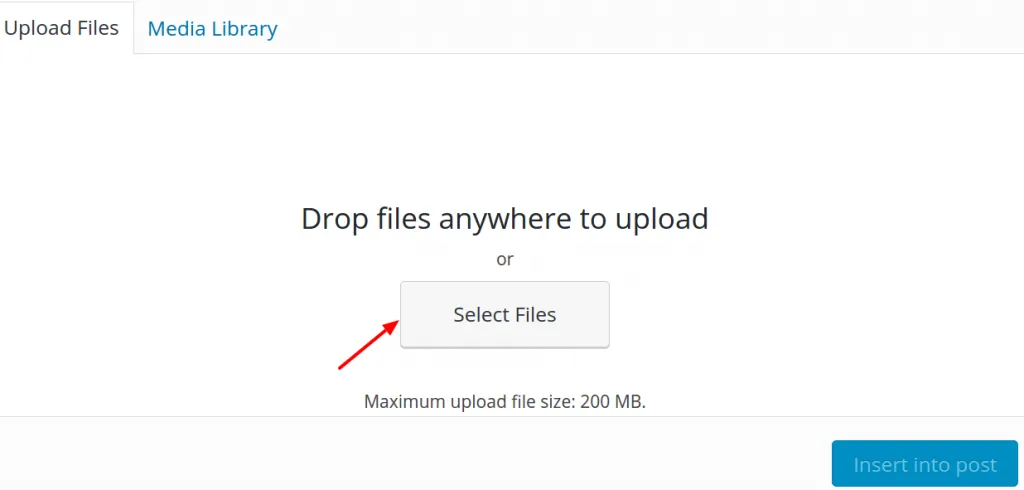
OR
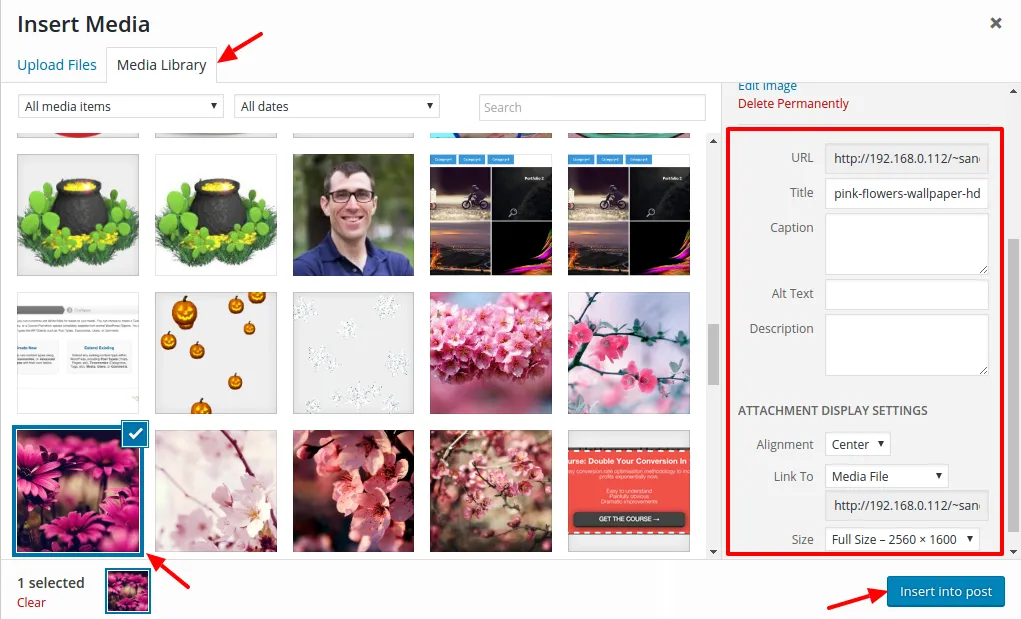
B. If you want to upload image from your saved items in media library, select Media Library button.
Step 5: Select the Image you want to add to the Sidebar message, change the appearance settings of the image from the dialog box on the right hand side such as alignment, size, etc. and finally select Insert into post button.
Step 6: Publish/Update the campaign.