
How to create an Overlay message in Icegram Engage?
Overlay message in Icegram can be created using Icegram Engage Max plan. If you are using this plan, read the complete post for tutorials.
To create an Overlay message, follow these steps:
Step 1: Install and activate Icegram Engage Max.
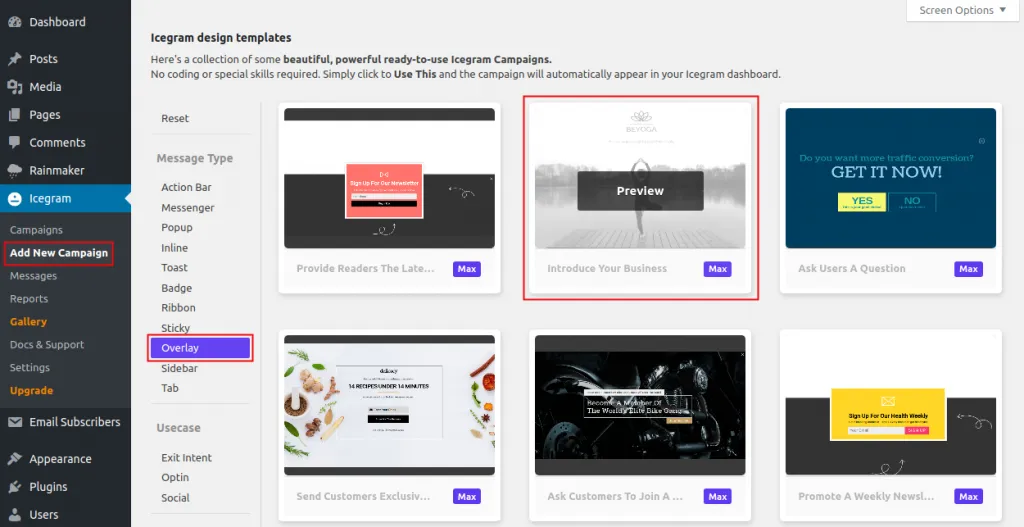
Step 2: Select Icegram from your WordPress dashboard. Click 'Add New Campaign'.
Step 3: Select Message Type as Overlay.
Step 4: Choose a readymade template and preview it.
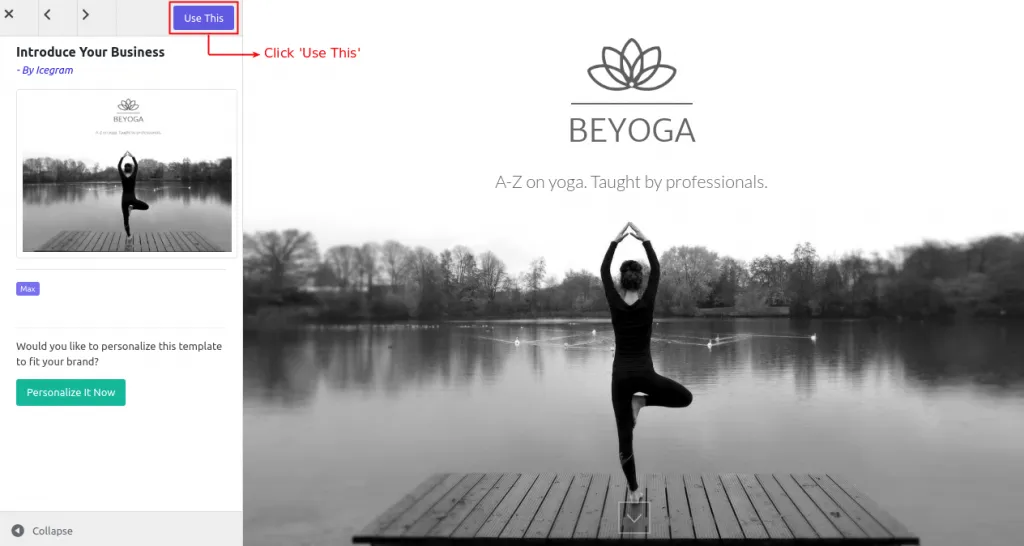
Step 5: Click ‘Use This’ gallery item.
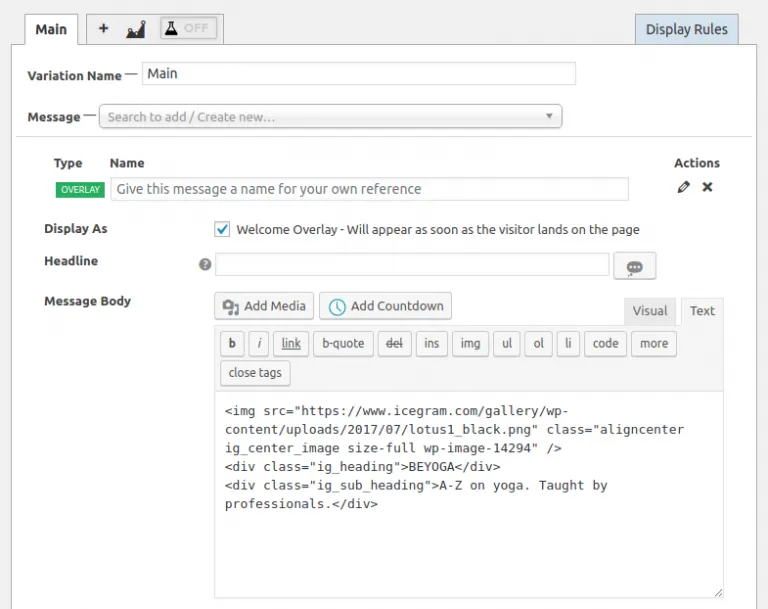
Step 6: Add or Edit the message content.
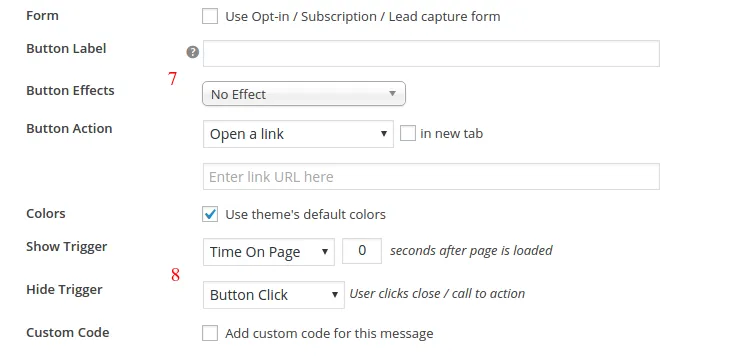
Step 7: Fill in other details like Buttons Label, Form, etc.
Step 8: Set Trigger as to when / how to show the Overlay message.
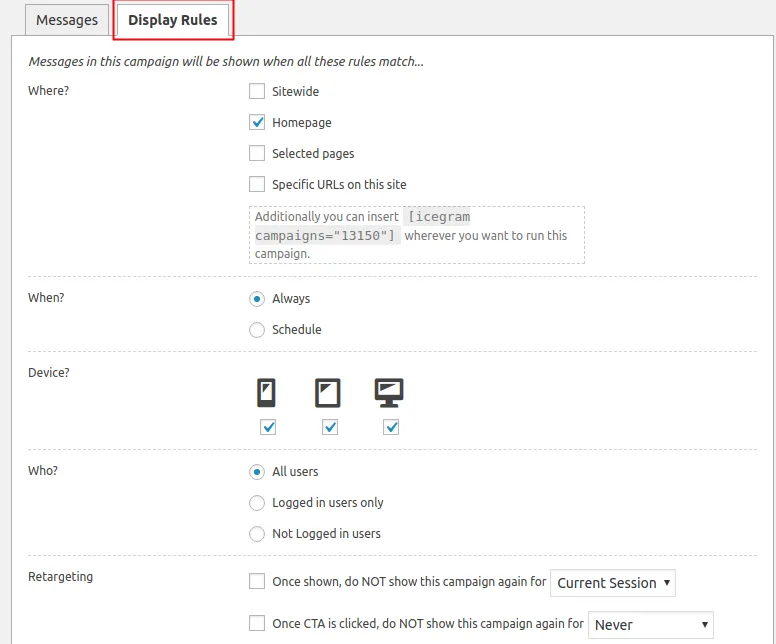
Step 9: Configure the display rules.
Step 10: Save Draft / Publish the campaign.
Note: