
How to Lock Page Content when an Icegram Engage message is displayed
Lock background page scrolling while an Icegram Engage overlay popup or modal message is active.
Content Locker feature can be used to block and hide the content of your pages.The content that is hidden is unlocked to the users once they successfully subscribe through the subscription form.
Icegram supports content locking for 3 message types:
-
Inline
-
Popup
-
Overlay
Inline Message
Step 1: Edit an inline campaign / create a new inline campaign
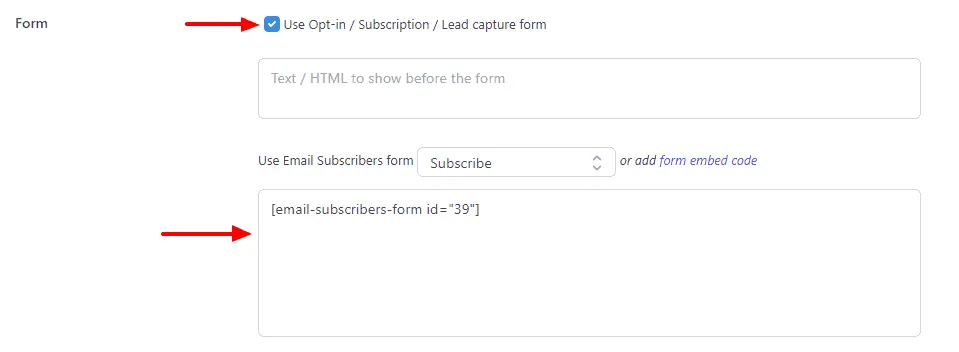
Step 2: Scroll down within the Design/Create tab and enable the Use Opt-in / Subscription / Lead capture form option within Form section. Click on form embed code link and embed any form shortcode in the textarea below.
Step 2: Now go to the Behavior Tab and enable the Content Locker option.
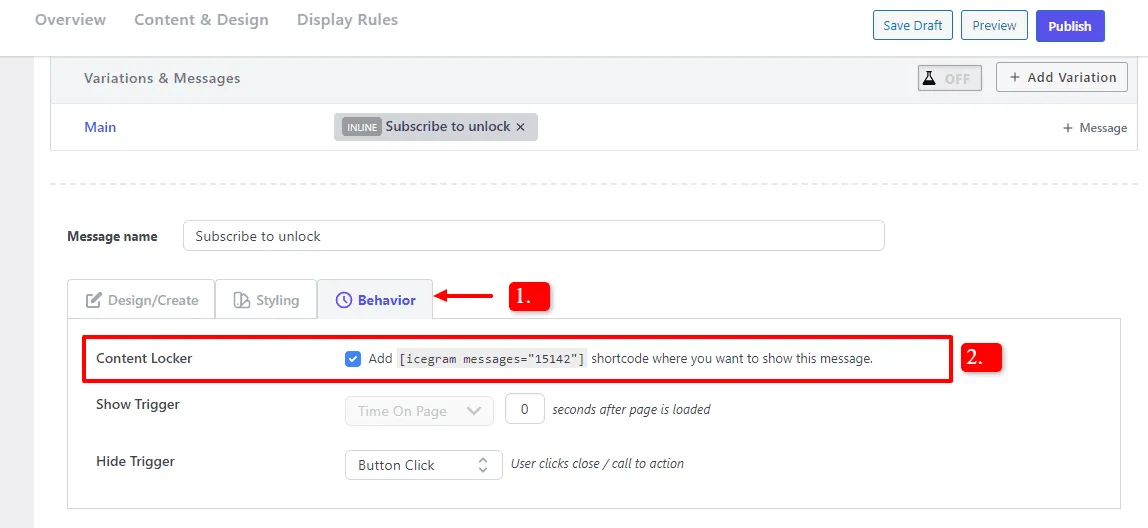
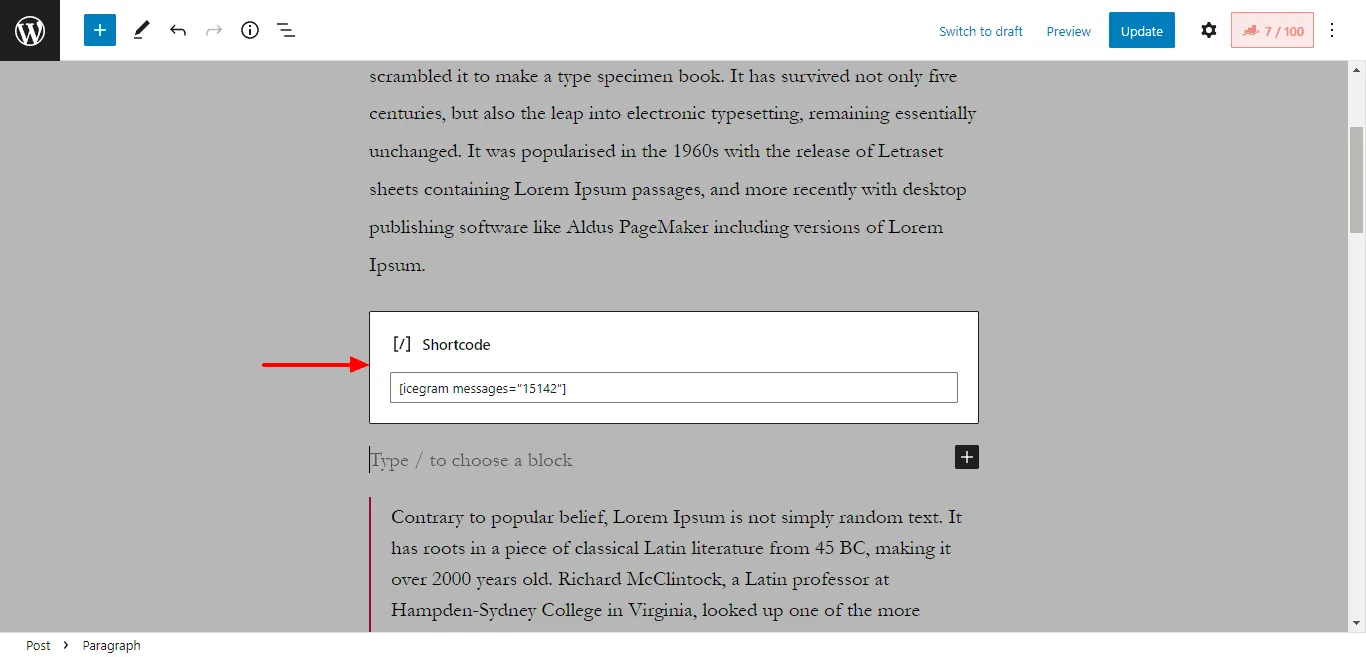
Step 3: Copy the shortcode besides the Content Locker option e.g. [icegram messages="15142"] and paste it anywhere in your post/page.
Step 4: Publish / Update your campaign.
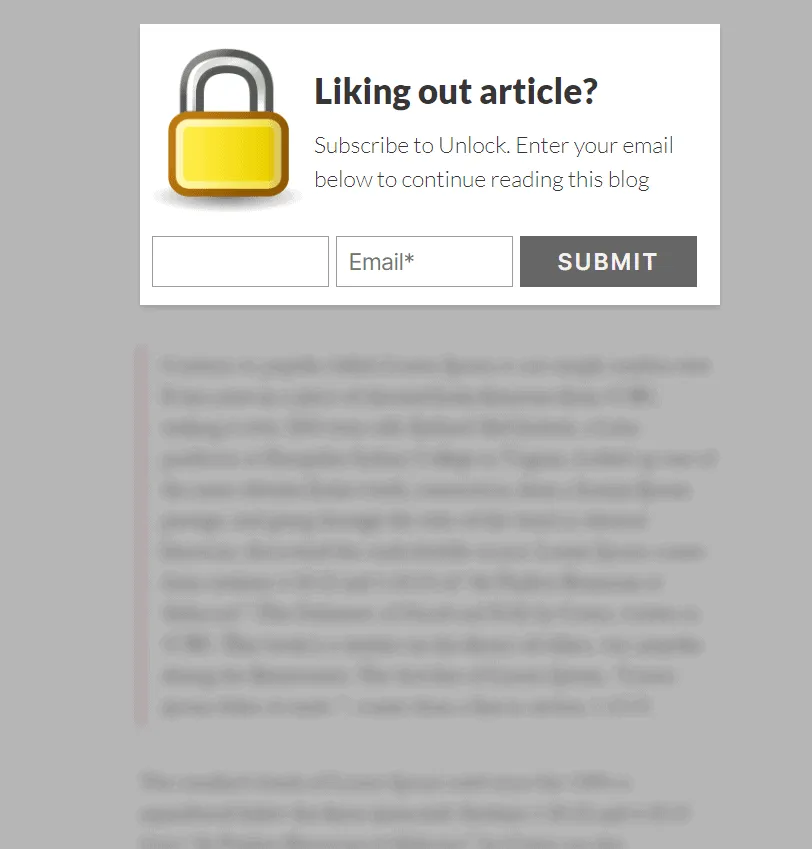
Step 5: The hidden content below the inline message will be displayed once the user subscribes through the form.
Popup/ Overlay Message
Step 1: Edit an existing popup/overlay campaign or create a new campaign
Step 2: Scroll down within the Design/Create tab and enable the Use Opt-in / Subscription / Lead capture form option within Form section. Click on form embed code link and embed any form shortcode in the textarea below.
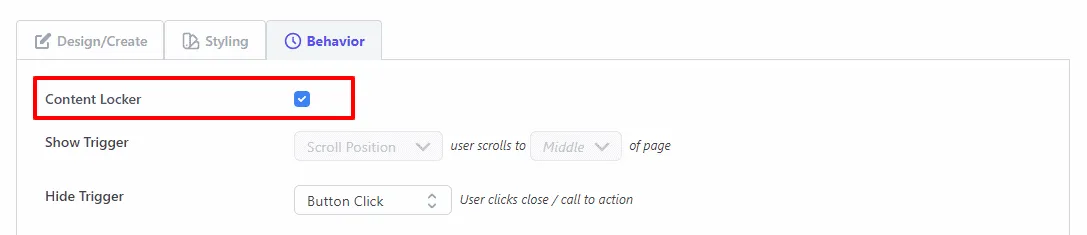
Step 2: Now go to the Behavior Tab and enable the Content Locker option. Once enabled, the Show Trigger option will be set to Scroll position - Middle for the popup/overlay.
Step 3: Configure the display rules for the campaign
Step 4: Publish / Update your campaign.
Step 5: The popup/overlay will be displayed when the user scrolls to the middle of the page/post. The user will not be able to scroll the page or close the message until they subscribe.