
How to trigger Icegram Engage messages on button or link click With Icegram Engage Pro Plan
Behavior trigger helps you to set up trigger an Icegram message onclick of a button or link in less than 5 minutes.
Steps:
Step 1: Configure your campaign. Create a message and fill in details as usual.
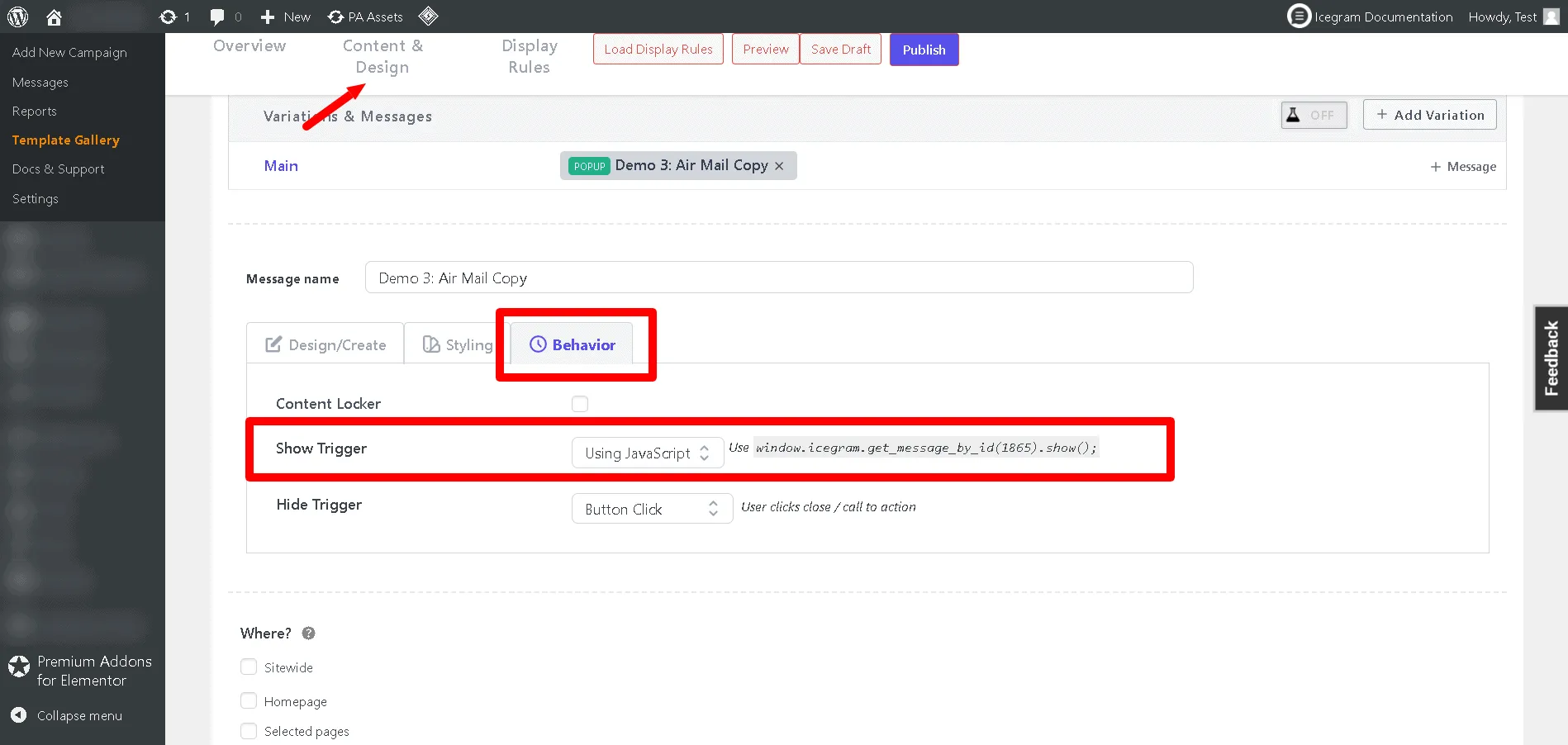
Step 2: Go to the Show Trigger option and set it to Using JavaScript.
Step 3: Copy the JavaScript code shown after the "Show Trigger" dropdown. The code looks something like: window.icegram.get_message_by_id({message_id}).show();
Step 4: Add targeting rules and any other campaign settings as needed and save your campaign.
Step 5: Go to the page where this message would be displayed. Create your button or link and paste the JavaScript code in the onclick attribute.
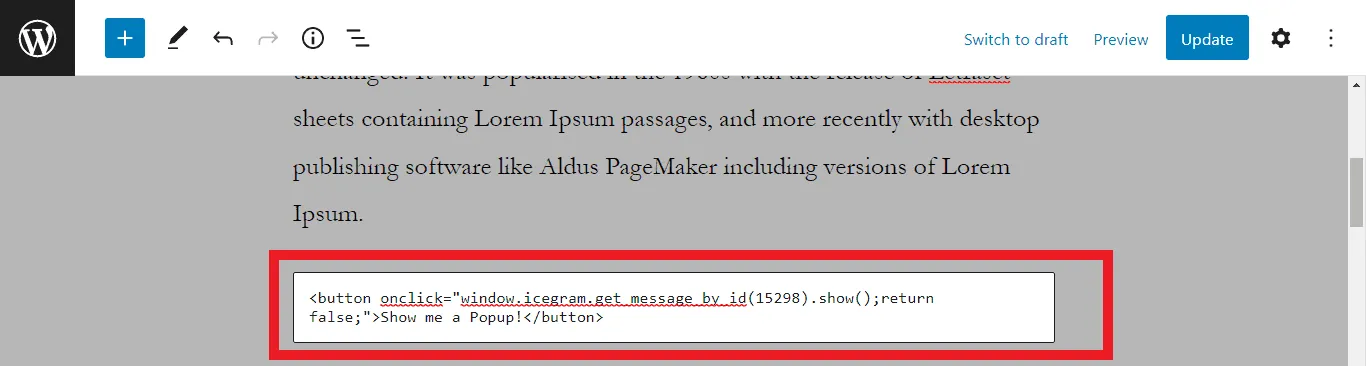
Step 6: For buttons, the code may look like: <button onclick="window.icegram.get_message_by_id({message_id}).show();return false;">Show me a Popup!</button>
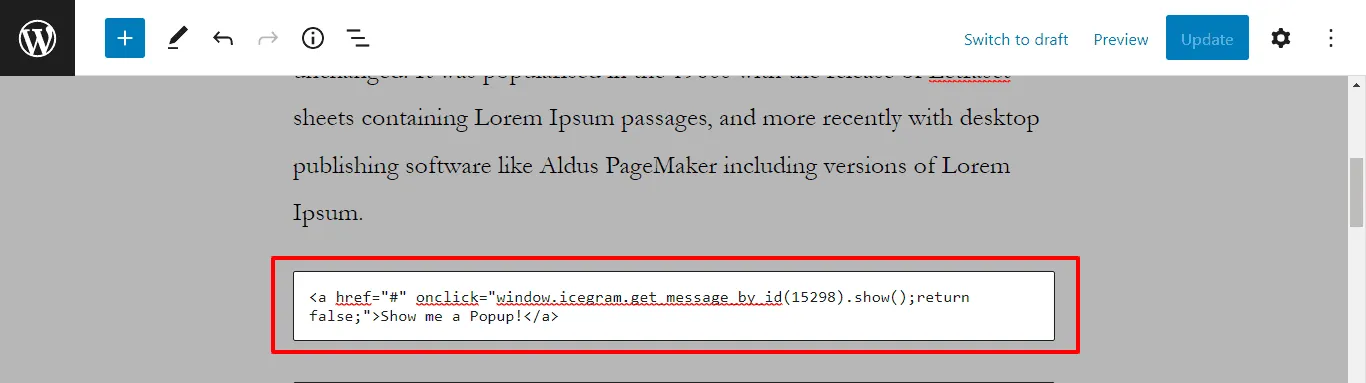
Step 7: For links, the code may look like: <a href="#" onclick="window.icegram.get_message_by_id({message_id}).show();return false;">Show me a Popup!</a>
For example:

Suppose the message id = 6344.

The code will look like:

<a href=""#"" onclick="window.icegram.get\_message\_by\_id(6344).show();return false;">

Show me a Popup!</a>
Make sure to ensure correct message id is present in the code, and that you are adding return false; after the code. Now test and verify everything is working as expected! Congratulations!
You've successfully implemented ""Using Javascript"" functionality of the Icegram Engage Pro plan.