
How to Create and Send Broadcast Emails using Icegram Express?
Create, compose, and send broadcast newsletter campaigns to your subscribers in Icegram Express.
Broadcast allows you to design and schedule newsletters on any occasion targeting a group of audience . Be it a product launch or something that you want to share with the audience, broadcast comes in handy when you want to send a customized newsletter on a range of occasions.
To create a broadcast,
-
Go to your WordPress
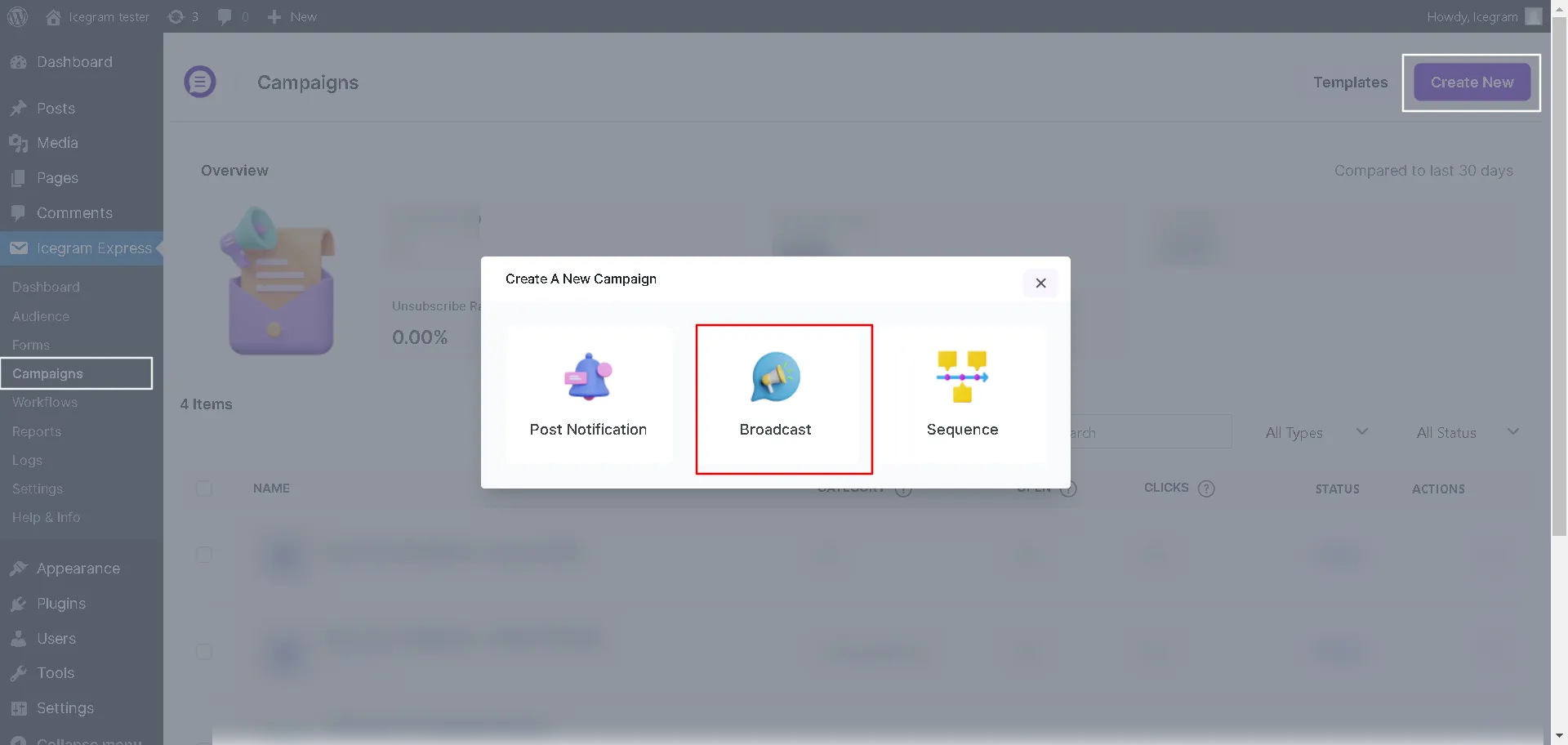
Dashboard→Icegram Express→Campaigns→Create New. -
Click Broadcast (newsletter)
-
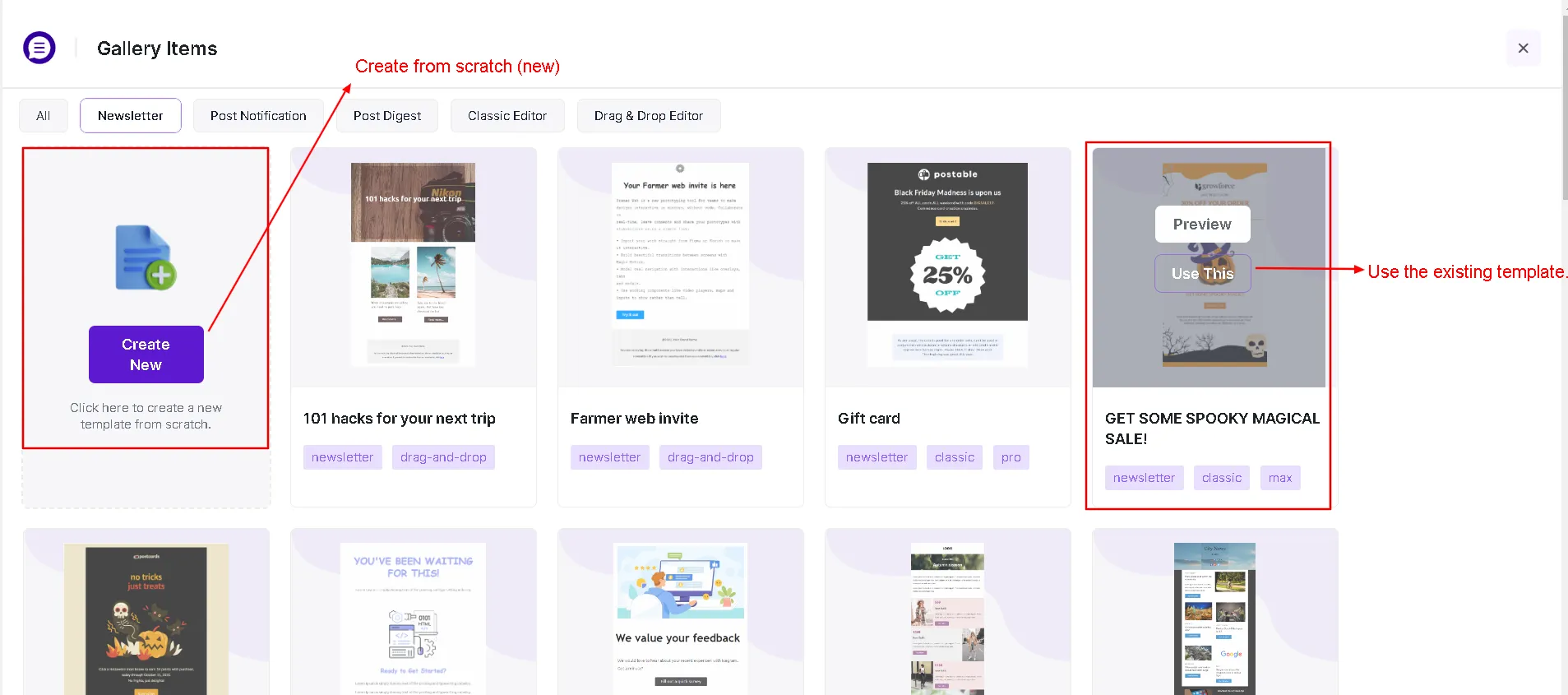
Select the Exsisting campiagn template or Create Template it from scarch.
-
Enter the campaign details and draft the message:
In the Design tab, you will find:
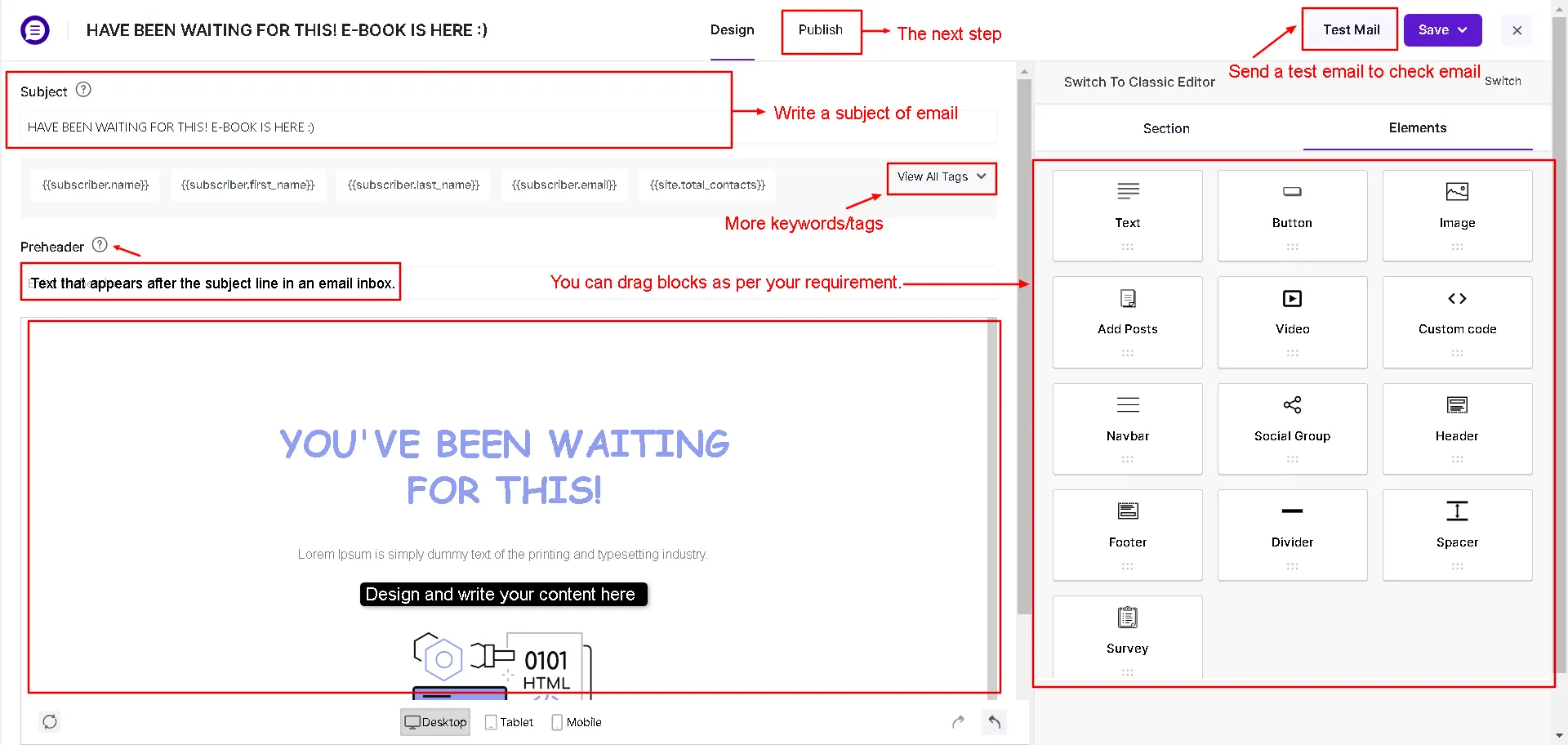
- Subject: Enter the subject of the email campaign.
- Pre-header: Learn more about pre-header here.
- Design email: Actual email content to be sent.
- Elements: You can drag elements as per your choice.
- Send Test: You can directly send a test email using the button on top. If you're using the lite version, you can send a sample notification to test the list.
- Use Keyword: Click here to learn more about keywords.
In the Publish tab, you will find:
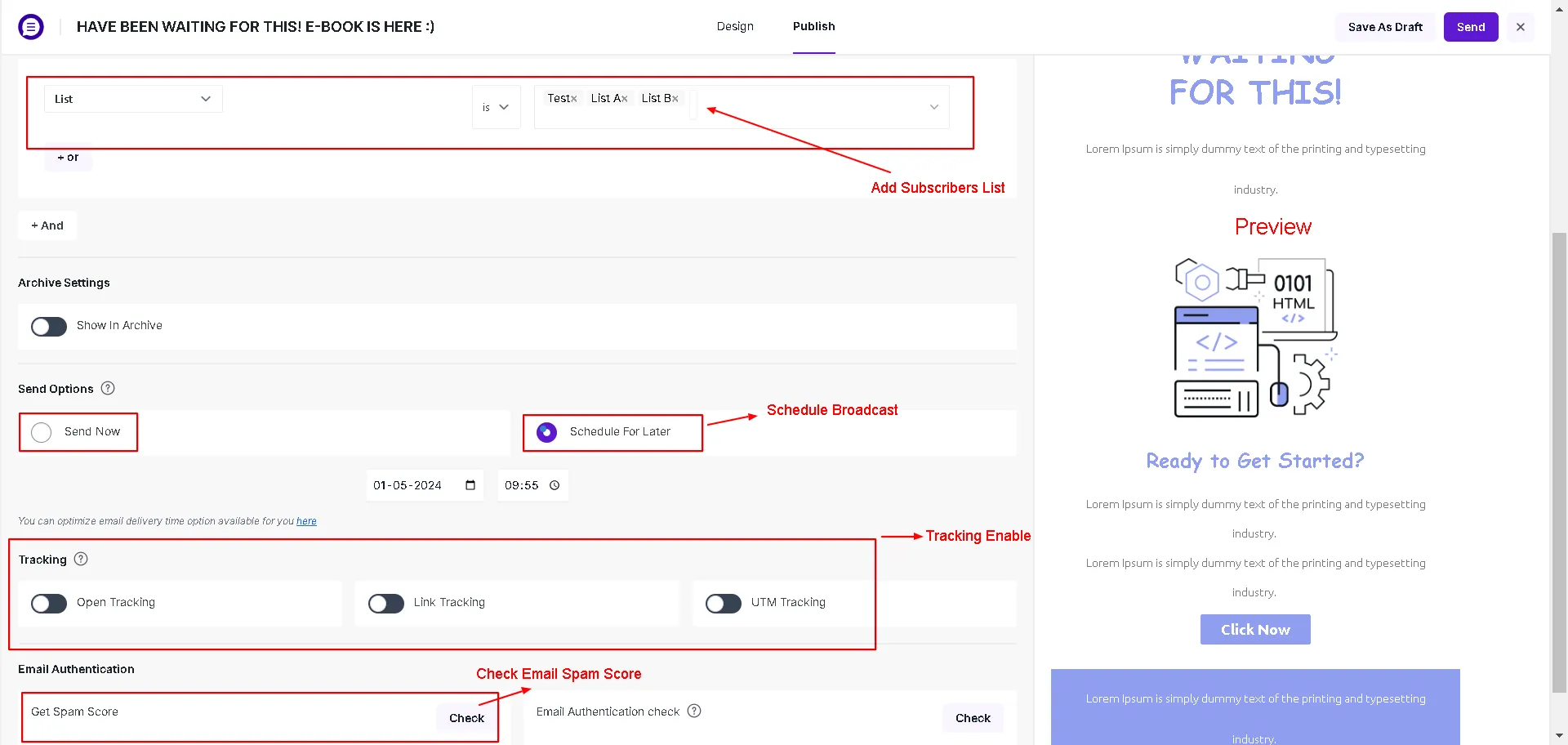
- From Email By default, it is fetched from settings, but you can change it to overwrite the default From Email address.
- From Name: Enter the name for the recipient to see on their end
- Recipients/List: Choose one or more lists under Recipients to target
- Preview: You can view the final email as it will appear.
- Check the spam score and update the message accordingly
- Enable/disable tracking
- Pick an option to send and click Send/Schedule