
[GDPR] How to enable consent checkbox in the form
Add a GDPR-compliant consent checkbox and privacy policy notice to your Icegram Collect forms.
GDPR is a significant change in data protection regulation in the EU and replaces the existing legal framework (the Data Protection Directive and the various member state laws). It will come into effect on May 25, 2018. Rainmaker is fully committed to achieving and upholding ongoing compliance with GDPR prior to the effective date.
To ensure that the subscription form provided within Rainmaker is compliant to GDPR, we have provided a 'consent seeking' checkbox in each of our forms.
This article explains how to enable consent checkbox within the subscription form provided by Rainmaker.
This article explains how to enable consent checkbox in the form of Rainmaker.
Requirements
-
Rainmaker latest version
-
GDPR plugin by Trew Knowledge latest version 2.1.0+
How to enable consent checkbox in the form
-
Make sure you have installed and activated above mentioned both plugins (as it is necessary for the consent checkbox).
-
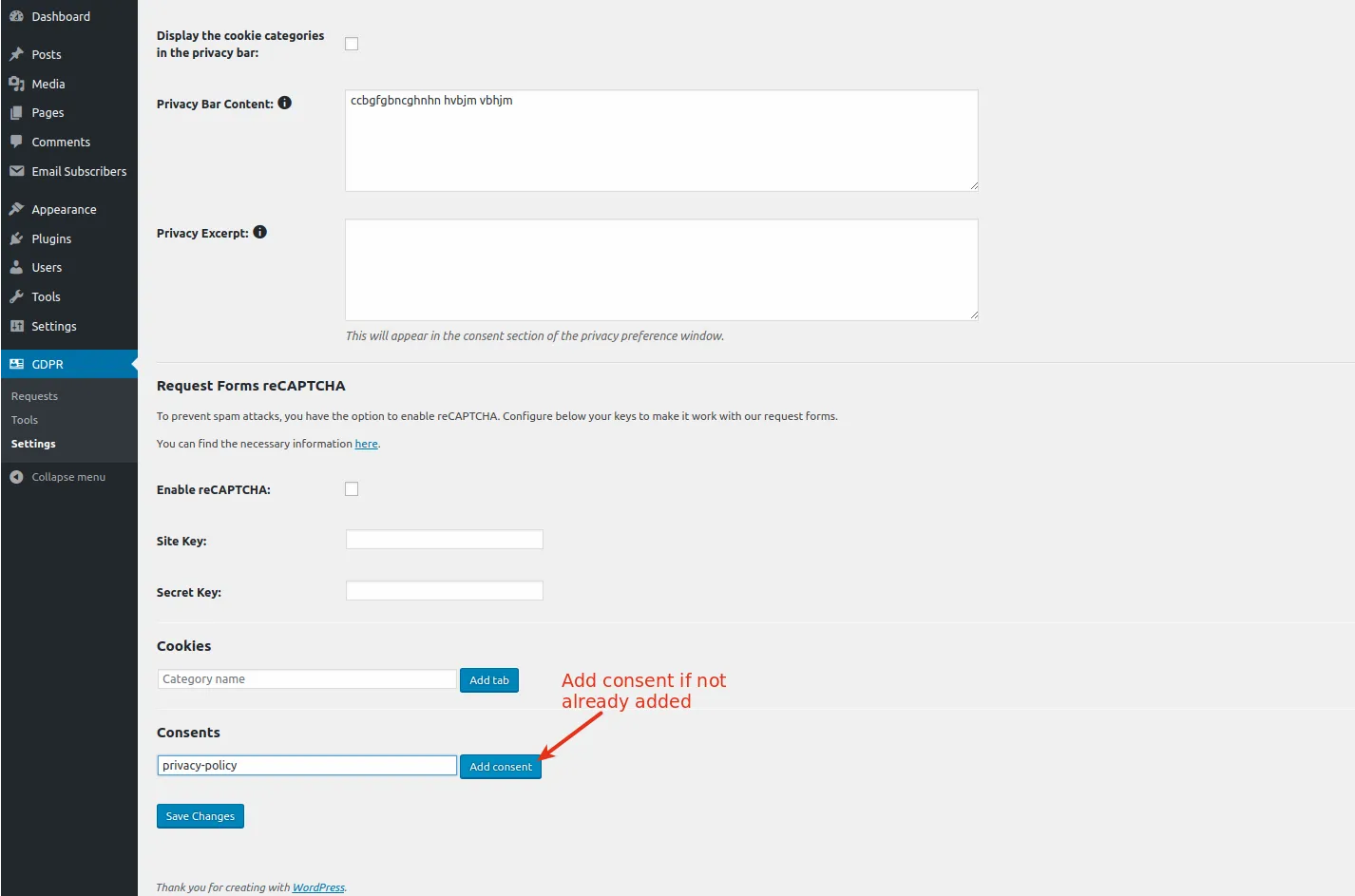
After activating GDPR plugin, go to GDPR -> Settings. If Privacy Policy (id: privacy-policy) consent is not already created, then create a new consent named 'privacy-policy' as shown below:
- After adding Privacy Policy (id: privacy-policy), it will look like this:
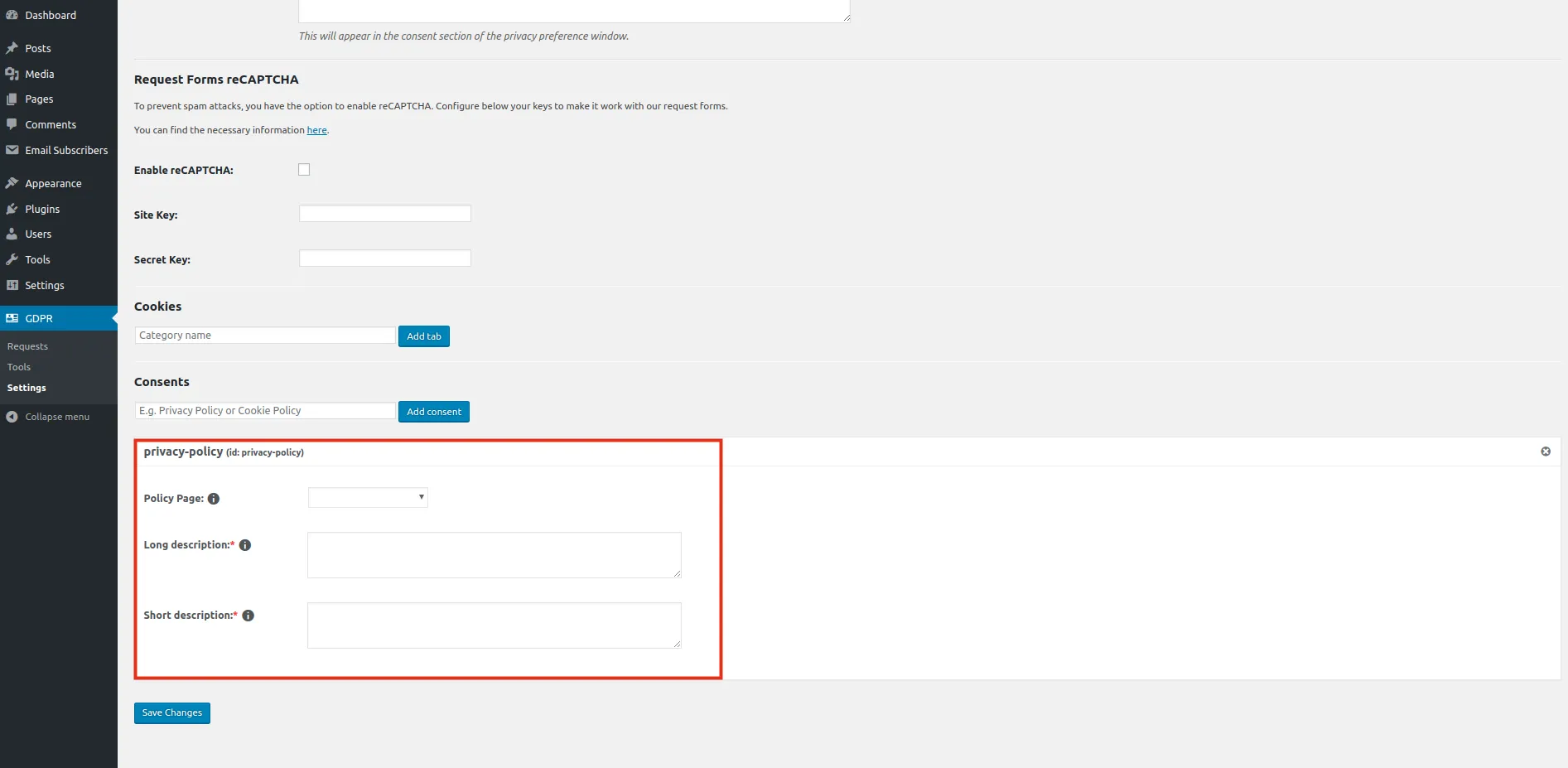
This is the consent checkbox that will be shown in the Rainmaker form.
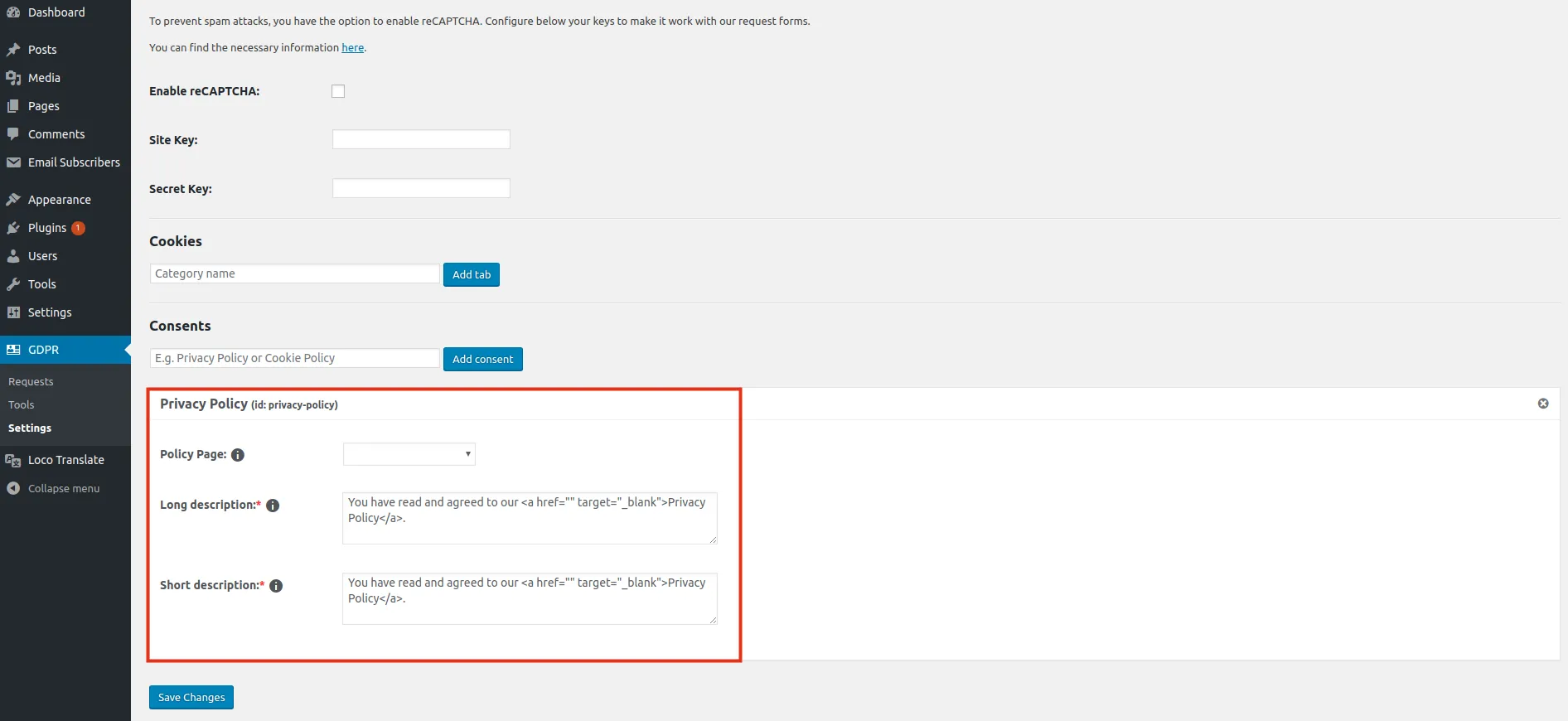
- If Privacy Policy (id: privacy-policy) consent is already created, then you will see something like this:
- If you have created a privacy policy page, then link it in GDPR -> Settings as shown below:
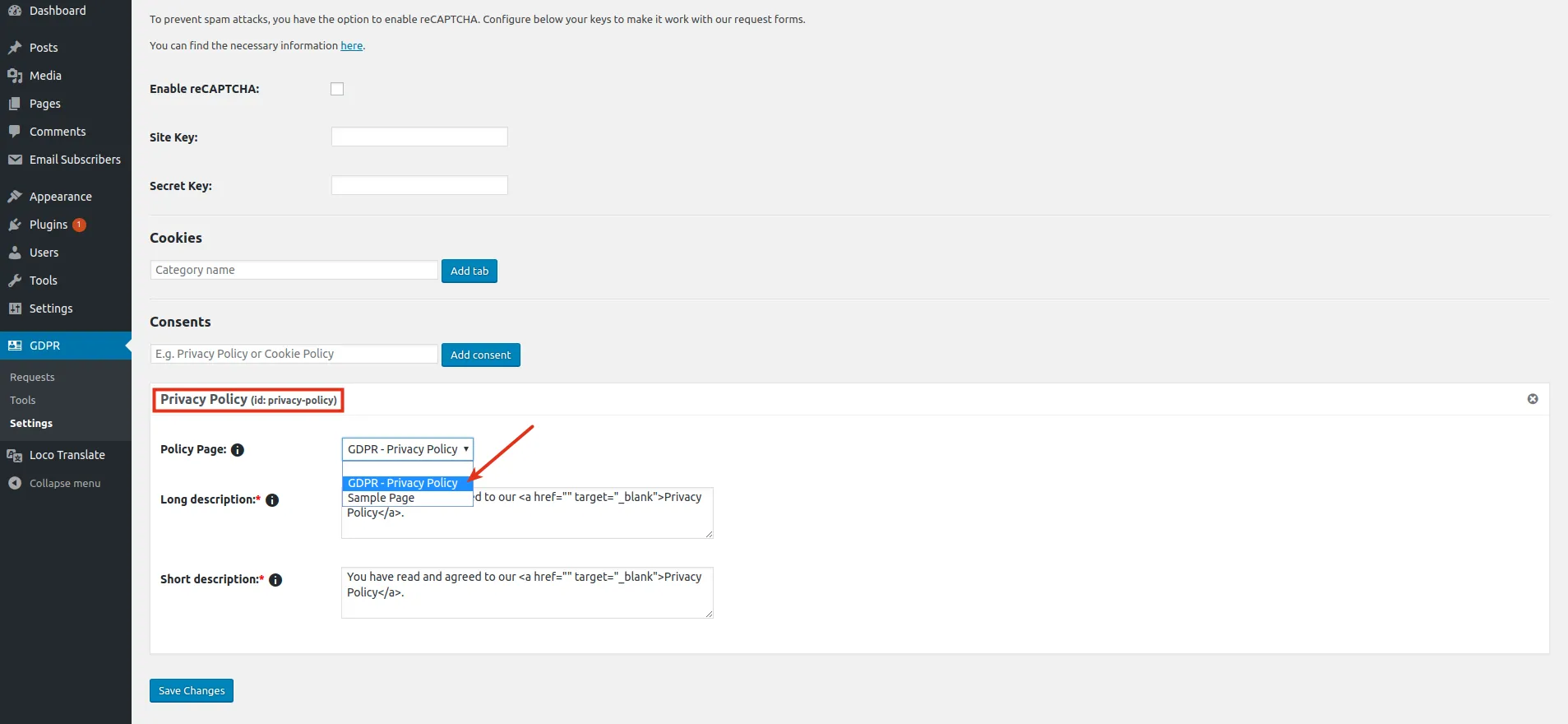
If not, please create a privacy policy page and then link it in the plugin as shown as above.
- You need to set the privacy policy page link that you just created:
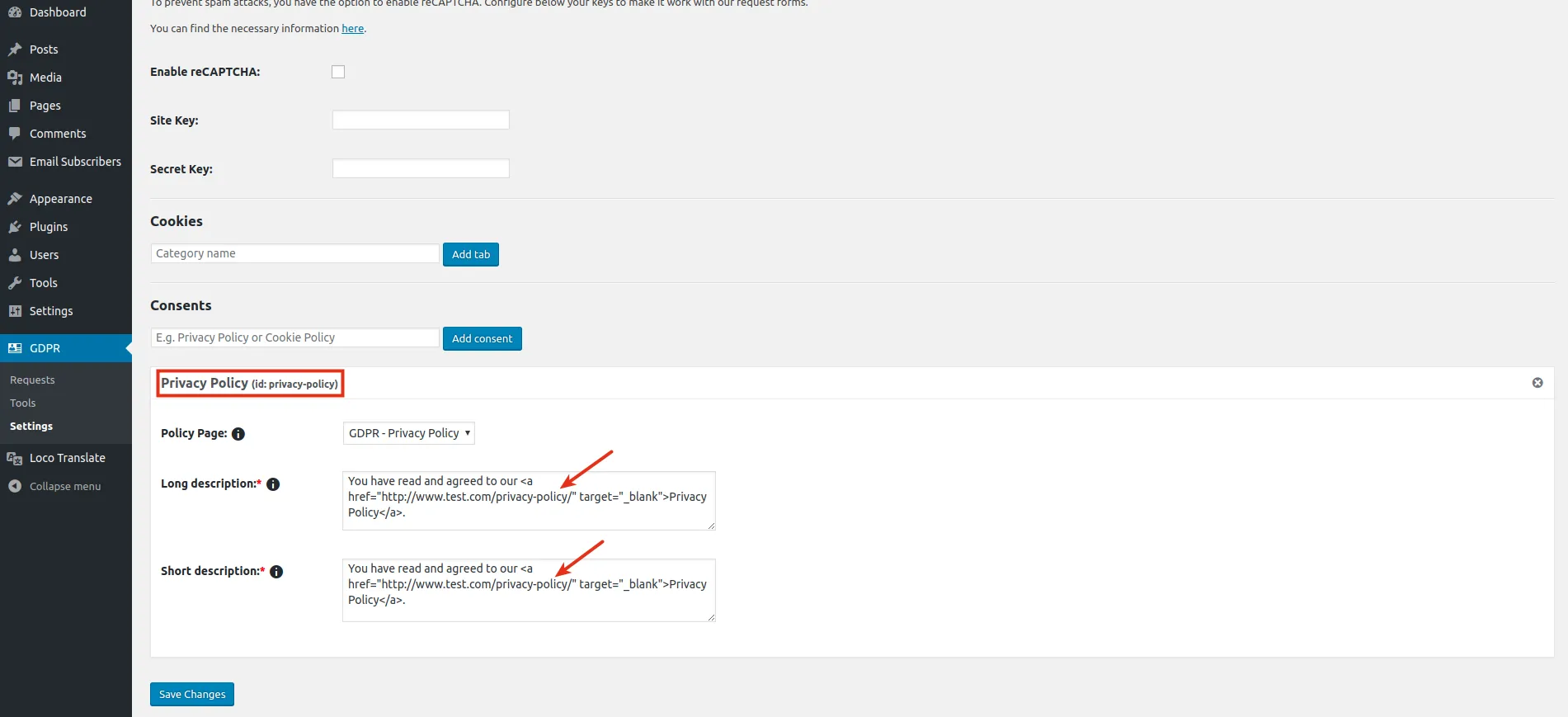
You can also customize the text as per your need
- That's it. Consent checkbox will be now visible in the form.